How to restore old photos with AI: bring back the faces in the family album
By Daniel Hughes, Safety, rights and family memories · Updated · 5 min read
the short version
To restore an old photo with AI, scan the print at 600 dpi or photograph it flat in soft daylight, upload it to a restoration tool and ask it to remove scratches, creases, stains and fading while keeping every face exactly as it is. Compare the result with the scan, keep the original as your archive, then print, share or gently animate the restored copy.
AI Photo Restyle
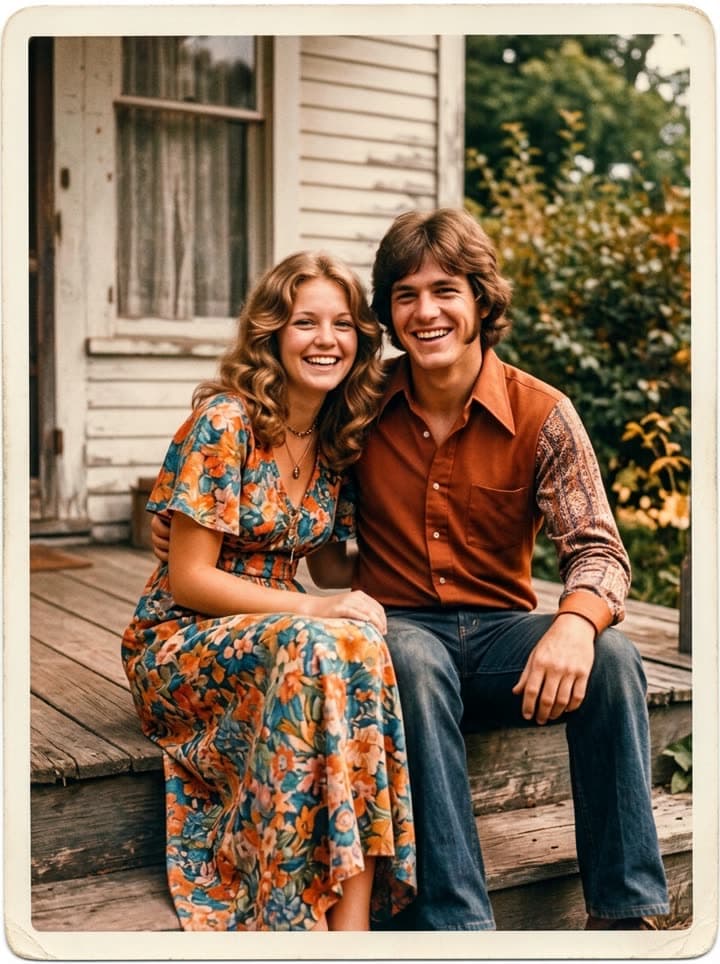 Restore an old photo
1 Pick a look · optional
Failed renders refund credits
Why restore the photos now
Every family has a box somewhere: a shoebox of prints with soft corners, an album whose pages have gone yellow, a framed wedding portrait that has faded behind glass for forty years. Paper photos keep getting worse. Color prints from the 1960s to the 1980s shift toward magenta and orange as their dyes break down, black-and-white prints silver and stain, and every move and every curious grandchild adds another crease.
The people who can tell you who is in each picture are getting older too. Restoring a photo is a good excuse to sit down with them, scan the box together and write the names on the back. The restored copies are what you share; the conversation is what you keep.
Step by step: restoring a photo with Dromana
Step 1
Digitize the print
Use a flatbed scanner at 600 dpi, or lay the photo flat by a window and shoot straight down with your phone. No flash, no glare, no shadow of your hand.
Step 2
Open the restore tool
Go to restore old photos. The prompt is already written to remove damage and keep every person unchanged.
Step 3
Upload and add specifics
Mention anything particular: “repair the tear across the bottom”, “remove the date stamp”, “the photo is from 1962”.
Step 4
Compare with the scan
Look at each face next to the original. If anything changed, generate again rather than accepting it.
Step 5
Save both versions
Keep the untouched scan as your archive and the restored copy for printing, frames and sharing.
Try this look on your own photo.
Make it with my photoWhat AI restoration can and can't fix
- Scratches, dust and hairline cracks: removed cleanly, even across faces.
- Creases and folds: the white lines disappear and the pattern underneath is rebuilt.
- Stains, foxing and water marks: lifted, with the colors underneath restored.
- Fading and color casts: contrast returns and the magenta or yellow tint is corrected.
- Torn or missing corners: rebuilt from what surrounds them, which works well for backgrounds.
- Blur and very low resolution: sharpened gently, but detail that was never captured can only be guessed.
The honest limit is missing information. If half a face is gone, any tool has to invent it, and the result is a reconstruction rather than the person. For those photos, tell relatives what was rebuilt, and keep the damaged original alongside the repair.
How to keep faces true to the person
The biggest risk in AI restoration isn't that it fails; it's that it quietly succeeds at the wrong thing. Some tools make everyone a little younger, smoother and more symmetrical, and the restored photo of your grandfather stops looking like him. That's why the Dromana restore prompt says, in plain words, to keep every face, age, expression, hairstyle and outfit exactly as it is and not to beautify anything.
Check eyes, glasses, teeth, hairlines and the shape of the jaw against the scan. Show the result to someone who knew the person; they will spot a change you'd miss. If one face drifts in a group photo, generate again; each run is independent, and the next one is often closer.
Color or keep it black and white?
The restore prompt adds natural color to black-and-white photos as it repairs them, which is what most families want for frames and slideshows. If you'd rather keep the photo monochrome, add “keep it black and white” to the prompt. If the print is in good shape and you only want color, the colorize black-and-white photos tool keeps the cleanup light.
Either way, colors on a black-and-white photo are a reconstruction, not a record. If you know what color something was, such as a dress, a car or someone's eyes, write it into the prompt.
What to do with the restored photos
- Print them: results look good up to about 5×7 inches, perfect for frames and albums.
- Share them in the family group chat with names and the year, while someone still remembers.
- Make them move: bring old photos to life turns a restored photo into a gentle 5-second clip where the people blink and smile.
- Build a tribute: our guide to animating old photos of loved ones covers memorial and anniversary videos.
Free results carry a small watermark. If you're printing for a frame or a service, restore the final versions on a plan, which removes it; Starter's first month is $4.99 if you've never paid.
Questions people ask
What is the best way to restore an old photo with AI?
Scan it well, upload it to a restoration tool with a prompt that removes damage but keeps faces unchanged, then compare the result with the original before you print or share.
Can I restore old photos on my phone?
Yes. Photograph the print flat in soft daylight, crop it, and upload it from your phone's browser. A scanner gives slightly better detail, but a careful phone photo works well.
How much does it cost to restore a photo?
Each restoration uses 20 credits. New accounts get 70 free credits with no card, enough for several photos.
Will AI change my relatives' faces?
It shouldn't, and the restore prompt explicitly forbids it, but always compare the result with the scan and generate again if a face looks different.
Can AI fix a torn photo?
Yes, tears and missing corners are rebuilt from the surrounding image. If a tear runs through a face, treat that part as a reconstruction.
Should I throw away the original after restoring it?
No. Keep the original print and the untouched scan; the restored copy is an interpretation, and the original is the record.
Effects from this guide
 Old photo restorationRestore old family photos with AI: remove scratches, creases, stains and fading, repair torn corners and add natural color, while every face stays exactly as it was.
 Colorize black-and-white photosColorize black-and-white and sepia photos with AI: realistic skin tones, period-true clothes and rooms, and the faces of the people you love left exactly as they were.
- Bring old photos to lifeAnimate an old family photo: the people in it blink, breathe and smile again in a gentle 5-second clip. For memorial slideshows, anniversaries and family memories.
Keep reading
 Animate old photos of loved ones: see them blink and smile again, gently5 min read
 How to colorize black-and-white photos with AI so they look real4 min read
- Best AI photo restoration apps in 2026: restore, colorize and animate old photos4 min read
- Día de los Muertos photo tribute: restored and moving photos for your ofrenda4 min read
- How to make a memorial slideshow from old photos, with a few that move4 min read
Ready to make yours?
Add one photo and get the look from this guide.