Animate old photos of loved ones: see them blink and smile again, gently
By Daniel Hughes, Safety, rights and family memories · Updated · 5 min read
the short version
To animate an old photo of a loved one, choose a clear picture where their face is visible, restore or colorize it first, then turn it into a short clip with a completely still camera and small, natural motion: blinking, breathing, a soft smile. Talk with close family before sharing, and present it as a moving memory made from a photograph, not real footage.
AI Photo to Video
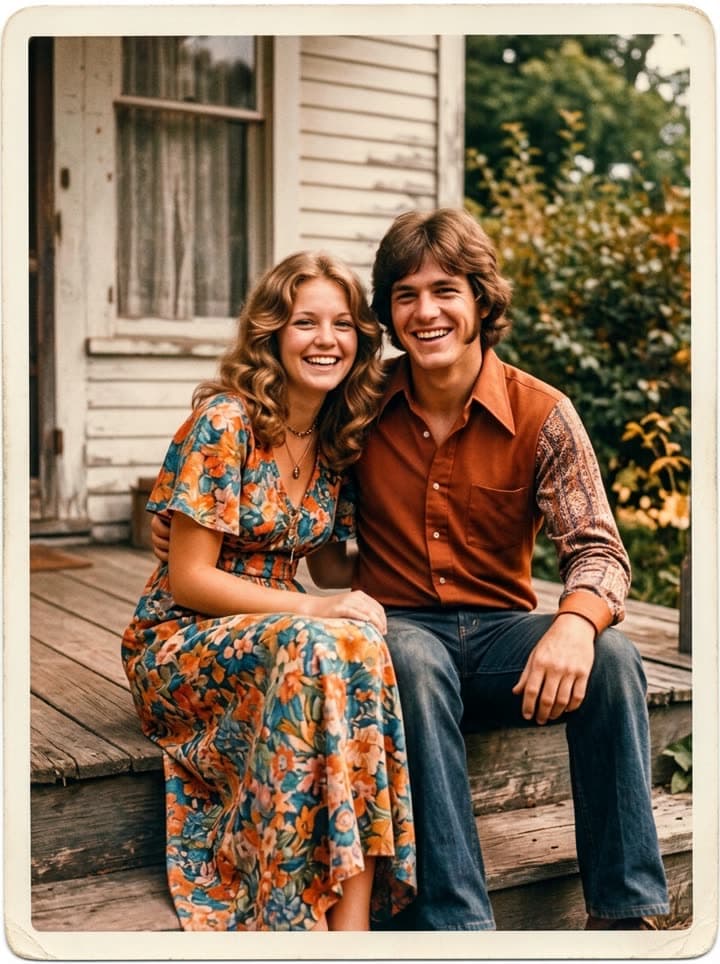 Old photo comes alive
1 Pick a look · optional
Describe what happens, in your own words. To change outfit or place, pick a look or switch on New outfit or scene.
Failed renders refund credits
Why people animate photos of the ones they miss
Grief has a strange relationship with photographs. We keep them close, but they're frozen, and the people we loved were never still. A few seconds where a mother blinks and smiles, or a grandfather's shoulders rise with a breath, can bring back a little of how it felt to be in the room with them. Many people describe watching one for the first time as both very hard and very comforting.
Families use these clips for memorial services and celebrations of life, for the anniversary of a death or the birthday of someone who's gone, for Día de los Muertos ofrendas, wedding anniversaries of grandparents, and simply to send a sibling a message that says “I was thinking of Dad today”.
Choosing the right photo
- Faces clear and reasonably large: a portrait or a couple works better than a distant group.
- Eyes open and visible: blinking is the motion that brings a face to life.
- A photo that feels like them: their real smile, their usual way of standing, not the one stiff passport picture.
- Natural expressions: a gentle smile animates more convincingly than a wide laugh.
- Avoid heavy damage across faces: restore those first so cracks don't move with the face.
Try this look on your own photo.
Make it with my photoStep by step
Step 1
Restore the photo
Clean up scratches, creases and fading with restore old photos, or add color with colorize old photos. Save the result.
Step 2
Open bring old photos to life
Go to bring old photos to life and upload the restored photo. The prompt starts with a still camera and gentle motion.
Step 3
Add one small gesture, if any
For example “she turns her head slightly toward him” or “he looks down at the baby and smiles”. Keep it to one.
Step 4
Watch and choose
Play it several times. Keep the take that feels like them, and generate again if it doesn't.
Each clip is 5 seconds and uses 70 credits; new accounts get 70 free credits with no card, enough for one. Failed renders refund their credits, and clips are silent, so you can add a song or a recorded voice afterwards.
Prompts that keep it gentle
- Portrait: “Completely stationary camera. She blinks slowly, breathes, and her face softens into a small smile. Subtle, natural motion.”
- Couple: “Stationary camera. They lean a little closer together and smile; he glances at her. Gentle, respectful motion.”
- Parent and child: “Still camera. The mother looks down at the baby and smiles; the baby moves its hand. Soft, natural motion.”
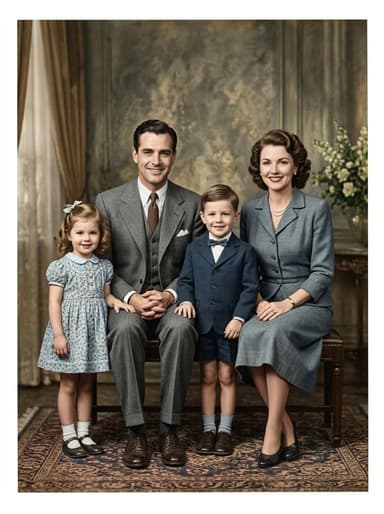
- Group or family: “Stationary camera. Everyone blinks and breathes naturally, a few faces soften into smiles. Nobody moves much.”
- Soldier or formal portrait: “Still camera. He blinks, takes a breath and the corner of his mouth lifts slightly.”
For the technique behind it, from digitizing the print to what to expect from the motion, see how to bring old photos to life.
Avoid talking, waving, dancing and big head turns. They're impressive on strangers and unsettling on people we knew; small motion reads as memory, big motion reads as a special effect.
Doing it with care
Not everyone grieves the same way. Before sharing a clip of someone who has died, ask the people closest to them: a spouse, children, siblings. Some will love it; some will need time; a few will prefer not to see it at all. When you show it to someone, tell them first what they're about to watch rather than surprising them.
Be honest about what it is: a moving memory created from a photograph, not a recording. Don't make anyone appear to say or do something they never would, and keep the motion close to who they were. Only animate photos you have a right to share, and see our safety page for what Dromana doesn't allow.
Turning clips into a tribute
A few moving photos among the stills make a memorial slideshow feel alive. Put the clips at natural pauses, such as the opening, a wedding photo and the last image, rather than animating every picture. Any free editor can join clips and stills with a piece of music they loved.
For an Día de los Muertos ofrenda, a tablet showing a slow loop of animated photos among the marigolds and candles is becoming a quiet tradition in many families; our Día de los Muertos photo tribute guide has ideas. And for living grandparents, a restored and animated wedding photo makes a gift they'll watch again and again.
Questions people ask
Can I animate a photo of someone who passed away?
Yes. Many families do for memorials and anniversaries. Talk with close family first, keep the motion gentle and share it as a moving memory, not real footage.
Can the animated photo talk?
No. Dromana clips are silent motion only: blinking, breathing, small smiles and gestures. Add music or a recorded voice when you build a slideshow.
How do I make the animation look natural?
Use a clear, restored photo, keep the camera completely still and ask for small motion like blinking, breathing and a soft smile.
How much does it cost?
A 5-second clip uses 70 credits. New accounts get 70 free credits with no card, enough for one clip.
Can I animate group photos?
Yes, everyone in the frame can move a little. Faces should be reasonably large; for a big group, crop to the people you most want to see.
Is it appropriate to show at a funeral or memorial?
It can be very moving, but check with the immediate family first and let people know before it plays.
Effects from this guide
 Bring old photos to lifeAnimate an old family photo: the people in it blink, breathe and smile again in a gentle 5-second clip. For memorial slideshows, anniversaries and family memories.
- Old photo restorationRestore old family photos with AI: remove scratches, creases, stains and fading, repair torn corners and add natural color, while every face stays exactly as it was.
 Colorize black-and-white photosColorize black-and-white and sepia photos with AI: realistic skin tones, period-true clothes and rooms, and the faces of the people you love left exactly as they were.
Keep reading
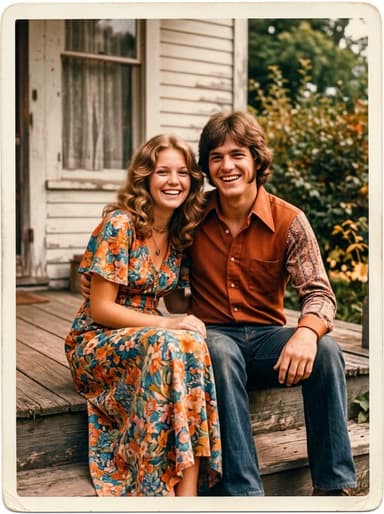 How to restore old photos with AI: bring back the faces in the family album5 min read
 Día de los Muertos photo tribute: restored and moving photos for your ofrenda4 min read
- How to colorize black-and-white photos with AI so they look real4 min read
- Best AI photo restoration apps in 2026: restore, colorize and animate old photos4 min read
- How to make a memorial slideshow from old photos, with a few that move4 min read
Ready to make yours?
Add one photo and get the look from this guide.