Restore old photos with AI — scratches, creases and fading, gone
Dromana restores old photos in about a minute. Scan or photograph the print, upload it and the restore prompt removes scratches, dust, creases and stains, fixes fading and contrast, sharpens it gently and adds natural color to black-and-white pictures, while every face, age and expression stays exactly as it was. No Photoshop, no retoucher. New accounts get 70 free credits.
AI Photo Restyle
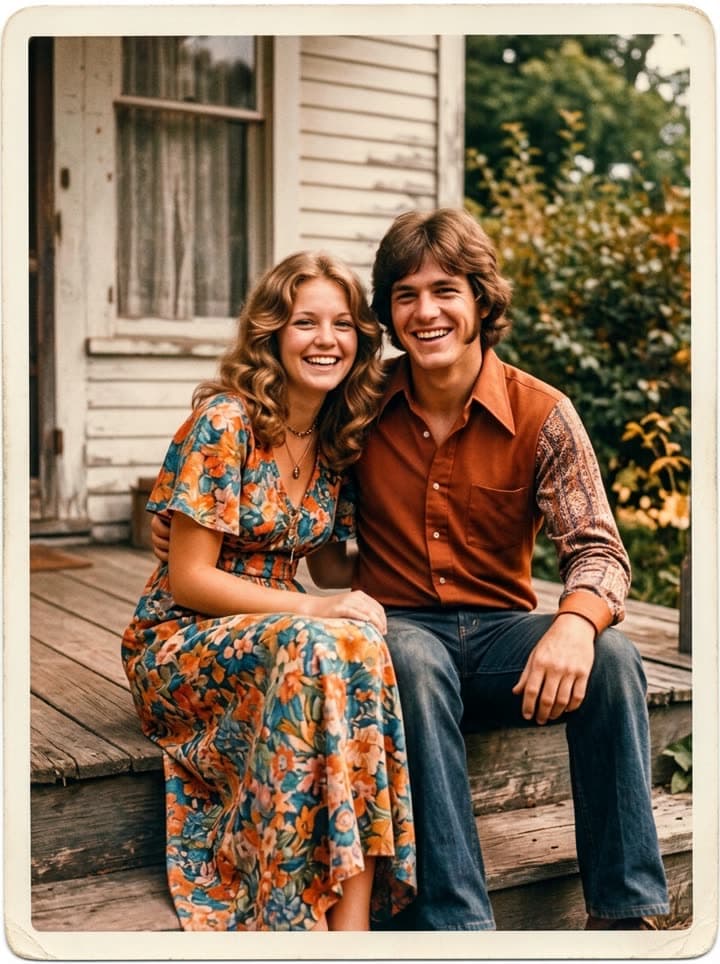 Restore an old photo
1 Pick a look · optional
Failed renders refund credits
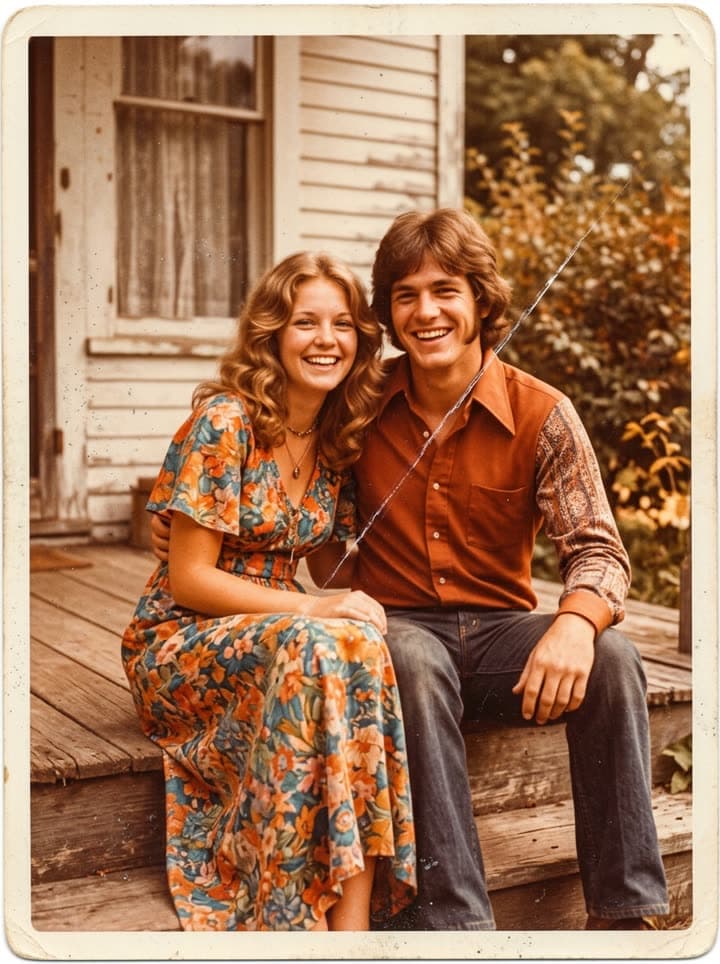 BeforeAfter
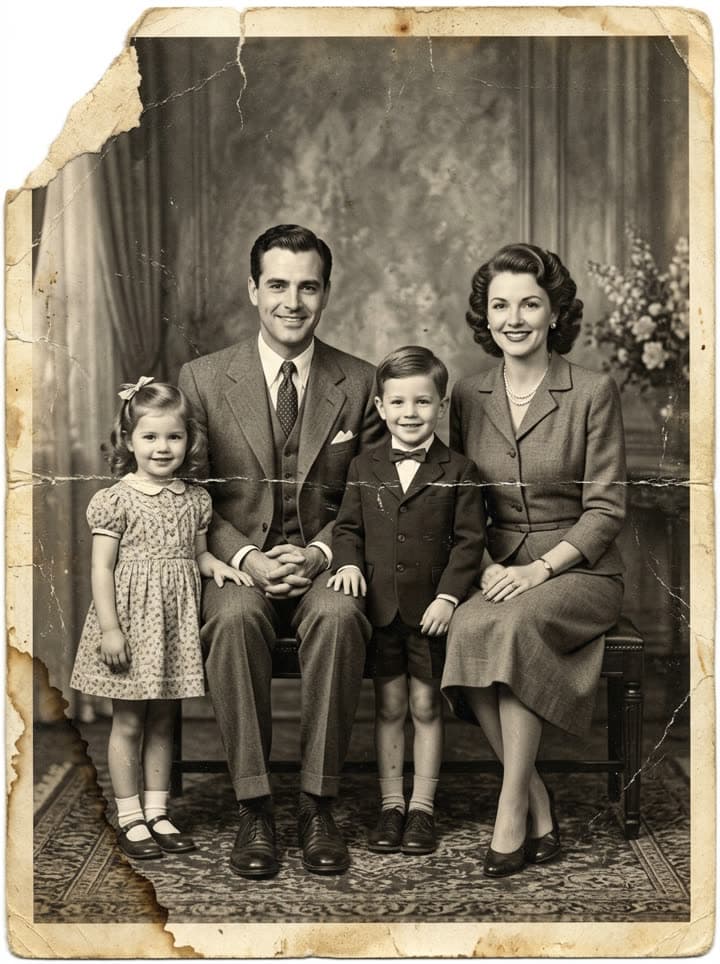 Before
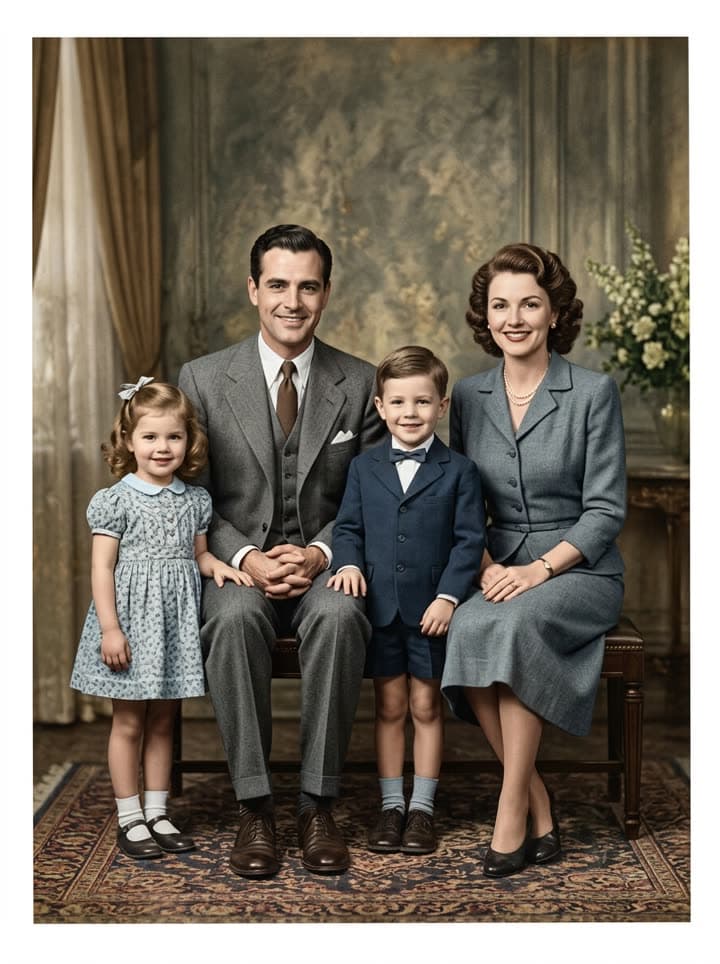 After
AfterExamples made with Dromana. Tap one to start from that look.
How to use the old photo restoration
Step 1
Digitize the print
Scan it at 600 dpi, or photograph it flat in soft daylight with the phone held straight above it. Crop off the table. JPG, PNG or WebP up to 8 MB.
Step 2
Upload and keep the restore prompt
The studio opens with a prompt that repairs damage and keeps every person unchanged. Add a line for anything specific, such as “repair the torn top-left corner”.
Step 3
Compare and save
Check faces against the original before you share. If something drifted, generate again; each try is a fresh restoration.
What AI photo restoration fixes
Most damage on old prints falls into a few kinds, and all of them are repairable from one scan: fine scratches and dust from decades in albums, white creases where a photo was folded into a wallet, water stains and foxing, torn or missing corners, and the yellow or magenta cast that color film develops as it ages. Faded prints regain contrast, blurry ones get a natural, gentle sharpening, and black-and-white photos can come back in realistic color.
The model rebuilds the missing detail by reading what is still there: the pattern of a dress continues across a crease, a sky fills in where the emulsion flaked off. Because the instruction tells it to keep faces, ages, hair, clothes and poses exactly as they are, the result is the same moment, just the way it looked the day it was taken.
Keeping faces true to the person
The one thing a family restoration must not do is change who someone was. Over-eager tools smooth wrinkles, widen smiles or quietly give a grandmother a younger face. Dromana's restore prompt forbids beautifying and starts on the detail-preserving model, which keeps features, expressions and skin texture closest to the original.
Always compare the result with the scan, side by side, before printing or sharing it. If an eye, a hairline or a pair of glasses looks different, generate again rather than editing the face by hand. Relatives notice small changes in faces they knew, and the restored version should be one they recognize instantly.
Scanning tips that make the biggest difference
The restoration can only work with what the scan captures. A flatbed scanner at 600 dpi is best; a phone works well if the print lies flat, the light is soft and even, and there is no glare from a glossy surface. Take photos out of sticky album pages carefully, or shoot them through the sleeve at a slight angle to avoid reflections, then straighten and crop.
Scan the whole print including the white border, and keep the untouched scan as your archive copy. Restorations are interpretations; the original scan is the record. For a step-by-step method, our guide on how to restore old photos with AI covers scanning, prompts and printing.
Bring the restored photo to life
Once a photo is restored, many families take one more step: a few seconds where the people in it blink, breathe and smile again. The bring old photos to life page turns a restored still into a gentle, silent 5-second clip with a completely still camera, made for memorial slideshows, anniversaries and family group chats.
If the photo is in good shape and only needs color, colorize black-and-white photos keeps the cleanup light and focuses on natural, period-true color.
Price, privacy and printing
A restoration uses 20 credits on the model the page starts on, so the 70 free credits new accounts get cover about 3 photos, and you earn 35 more each day you visit. Starter is $10 a month, with the first month at $4.99 if you have never paid, and removes the watermark. Results are 1K, sharp enough for a 5×7 print or any screen.
Your uploads stay private to your account and you can delete them at any time; see our privacy policy. Only restore photos you have the right to use, which for family photos usually means your own or ones relatives shared with you.
Tips for better results
- Scan at 600 dpi, or photograph the print flat in soft daylight with no glare.
- Keep the original scan as your archive; the restoration is a copy.
- Compare every face with the scan before you print or share it.
- Name specific damage in the prompt: “repair the torn bottom-right corner”.
- Restore first, then animate; a clean photo moves far more naturally.
FAQ
Can AI really restore an old damaged photo?
Yes. It removes scratches, dust, creases and stains, repairs torn corners, fixes fading and color casts and gently sharpens the picture, all from one scan or phone photo of the print.
Will the restored photo still look like my family?
That is what the restore prompt is written for: it keeps faces, ages, expressions, hair and clothes exactly as they are and forbids beautifying. Compare the result with the scan, and generate again if any face looks different.
Does it colorize black-and-white photos too?
Yes. The restore prompt adds natural, period-true color to black-and-white photos as it repairs them. For color only, use the colorize page, which keeps the cleanup lighter.
How much does photo restoration cost?
Each restoration uses 20 credits. New accounts get 70 free credits with no card, about 3 restorations, plus 35 more each day you visit.
Can I print the restored photo?
Yes. Results work well up to about 5×7 inches. Free results carry a small watermark; plans remove it, so restore the final versions on a plan before printing.
What if the photo is very badly damaged?
Missing areas are rebuilt from what surrounds them, so a torn corner or a crease through the background is fine. If a face itself is mostly missing, the model has to guess, and you should treat the result as an artist's reconstruction, not the original.
Only use photos you have the right to use. See our safety guidelines.
Guides for this look
- How to restore old photos with AI: bring back the faces in the family albumRestore old, scratched, creased or faded family photos with AI in a minute: how to scan them, what to ask for, how to keep every face true, and how to print or share.
- Animate old photos of loved ones: see them blink and smile again, gentlyHow to animate an old photo of a parent, grandparent or someone you've lost: picking the photo, restoring it, keeping the motion gentle and sharing it with care.
- Día de los Muertos photo tribute: restored and moving photos for your ofrendaHonor your loved ones this Día de los Muertos: restore their photos for the ofrenda, add color, make a gentle moving portrait and share a tribute with family far away.
- How to colorize black-and-white photos with AI so they look realColorize old black-and-white and sepia family photos with AI: natural skin tones, period-true colors, using what relatives remember, and keeping the original safe.