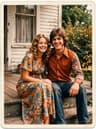
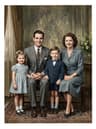
Bring old photos to life — see them smile again
Dromana turns an old family photo into a short, gentle video: the people in it blink, breathe, glance at each other and smile softly while the camera stays perfectly still. Restore or colorize the print first, upload it and get a silent 5-second clip for a memorial slideshow, an anniversary or the family group chat. New accounts get 70 free credits, enough for one clip.
AI Photo to Video
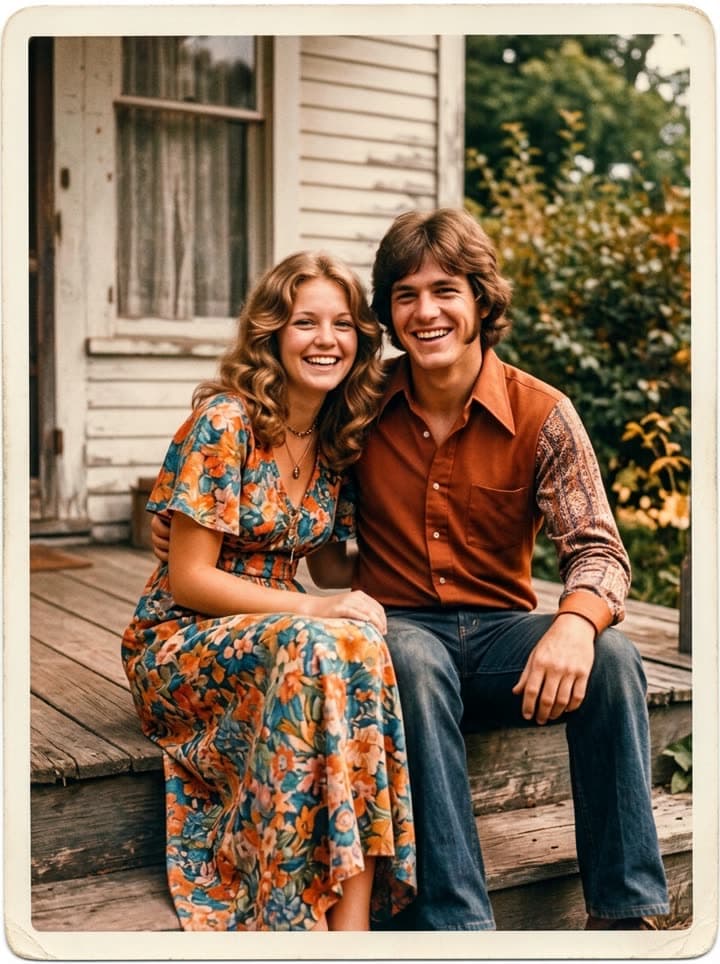 Old photo comes alive
1 Pick a look · optional
Describe what happens, in your own words. To change outfit or place, pick a look or switch on New outfit or scene.
Failed renders refund credits
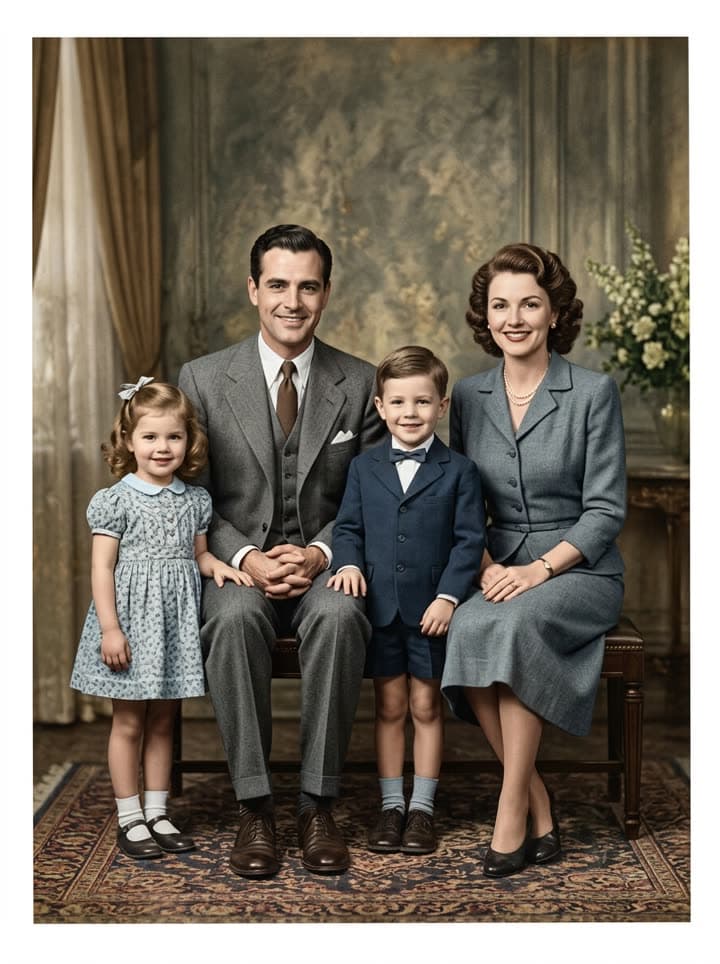
Examples made with Dromana. Tap one to start from that look.
How to use the bring old photos to life
Step 1
Restore the photo first
A clean scan moves far more naturally. Use restore old photos or colorize, then save the result.
Step 2
Upload and keep the motion gentle
The prompt starts with a still camera, blinking, breathing and soft smiles. Add one small gesture if you like: “she turns to look at him”.
Step 3
Watch it and choose
Play the clip a few times and keep the take that feels like them. Generate again if anything looks wrong; failed renders refund their credits.
Why a few seconds of movement means so much
We remember people in motion: the way a father tilted his head before he laughed, a grandmother's slow smile, two parents leaning together on a porch step. A still photo keeps the face; a few seconds of gentle movement brings back a little of the presence. That's why families use these clips at memorials and celebrations of life, on anniversaries and birthdays of someone who's gone, in Día de los Muertos ofrenda slideshows and simply to send to a sibling with the words “look at Mum”.
It works with any photo where faces are visible: wedding portraits, a couple on vacation in the seventies, a family lined up in their Sunday best, a child on a grandparent's knee, a soldier's portrait before he left.
Gentle motion, still camera
The clips that move people most are the quiet ones. The camera never moves, so the photo still feels like the photo; inside it, the people blink, breathe, their faces soften into small smiles, and perhaps one turns slightly toward another. Big gestures, talking or dancing tend to look strange for people we knew well, so the starting prompt deliberately keeps everything small.
Each clip is 5 seconds at 768p on the default model, vertical or horizontal to match the photo. Clips are silent, so you can add a favourite song or a voice recording when you put a slideshow together.
Doing it respectfully
Animating a photo of someone who has died is personal, and not everyone in a family feels the same about it. Ask the people closest to them before you share a clip widely, and be gentle about showing it to someone who is grieving; for some it is a comfort, for others too much at first. Keep the motion close to how the person really was.
Be clear that the clip is a moving memory created from a photograph, not real footage. Don't make anyone say or do something they never would, and only animate photos of people you have a right to share, which for family photos usually means your own family's.
Ideas for using the clips
A memorial or celebration-of-life slideshow, where a few moving photos among the stills always draw a quiet gasp. A wedding anniversary surprise with the couple's photo from the day they married. A birthday message for a grandparent built from their childhood pictures. A family history page or a Día de los Muertos ofrenda shown on a tablet.
Our guide to animating old photos of loved ones has prompts for portraits, couples and group photos, and how to combine clips into a short tribute video.
Price and privacy
A 5-second clip uses 70 credits. New accounts get 70 free credits with no card, enough for one clip, and 35 more each day they visit. Starter is $10 a month, with the first month at $4.99 if you have never paid, and removes the watermark for clips you want to print onto a tribute or show at a service.
Your photos and clips stay private to your account until you share them, and you can delete them at any time. See the privacy policy for details.
Tips for better results
- Restore or colorize the photo first; clean photos move more naturally.
- Keep the camera still and the motion small: blinking, breathing, soft smiles.
- Choose photos where faces are clear and at least thumbnail-sized.
- Ask close family before sharing a clip of someone who has died.
- Add music or a voice note in your editor; the clips are silent.
FAQ
Can AI make an old photo move?
Yes. Upload the photo and the people in it blink, breathe and smile softly in a 5-second clip while the camera stays still, so it still feels like the original picture.
Can I animate a photo of a loved one who passed away?
Yes, and many families do for memorials and anniversaries. Talk to close relatives first, keep the motion gentle and true to the person, and share it as a moving memory, not real footage.
Does it work with group and family photos?
Yes. Everyone in the frame can move a little; for big groups, faces need to be reasonably large in the photo to animate well.
Can the people in the photo talk?
No. The clips are silent motion only, with no speech or lip-sync. Add music or a recorded voice in your slideshow or video editor.
Should I restore the photo before animating it?
Usually, yes. Scratches and creases can wobble when the picture moves. Restore or colorize the photo first, then animate the restored version.
How much does it cost to bring a photo to life?
Each 5-second clip uses 70 credits. New accounts get 70 free credits with no card, enough for one clip, and failed renders refund their credits.
Only use photos you have the right to use. See our safety guidelines.
Guides for this look
- How to restore old photos with AI: bring back the faces in the family albumRestore old, scratched, creased or faded family photos with AI in a minute: how to scan them, what to ask for, how to keep every face true, and how to print or share.
- Animate old photos of loved ones: see them blink and smile again, gentlyHow to animate an old photo of a parent, grandparent or someone you've lost: picking the photo, restoring it, keeping the motion gentle and sharing it with care.
- Día de los Muertos photo tribute: restored and moving photos for your ofrendaHonor your loved ones this Día de los Muertos: restore their photos for the ofrenda, add color, make a gentle moving portrait and share a tribute with family far away.
- How to colorize black-and-white photos with AI so they look realColorize old black-and-white and sepia family photos with AI: natural skin tones, period-true colors, using what relatives remember, and keeping the original safe.