How to make a memorial slideshow from old photos, with a few that move
By Daniel Hughes, Safety, rights and family memories · Updated · 4 min read
the short version
A memorial slideshow works best with 40 to 80 photos in rough life order, restored so faded and damaged prints look their best, set to one or two songs the person loved, with a few gently animated portraits at key moments. Gather photos from the whole family early, ask someone to check names and dates, and keep the finished video about five to eight minutes long.
AI Photo to Video
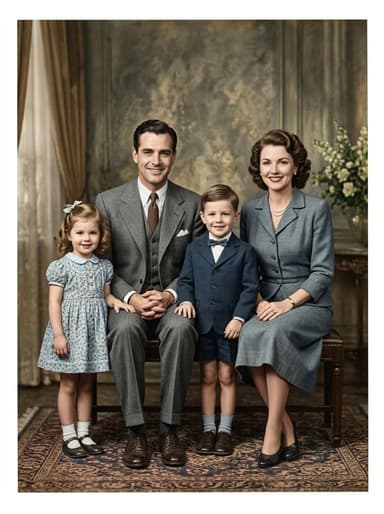
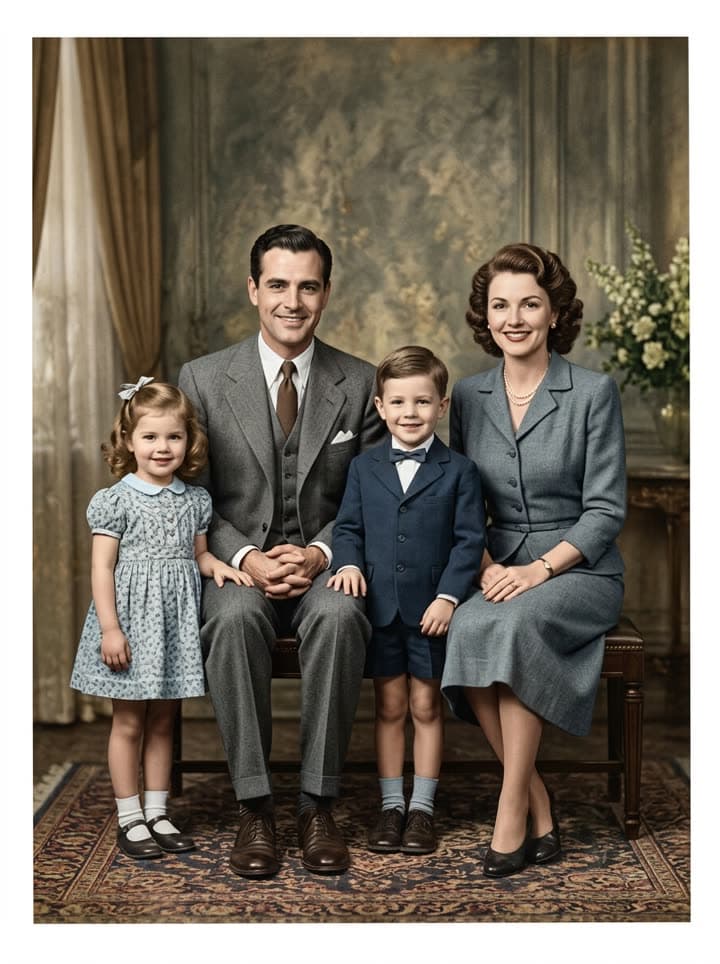 Family photo comes alive
1 Pick a look · optional
Describe what happens, in your own words. To change outfit or place, pick a look or switch on New outfit or scene.
Failed renders refund credits
Gathering the photos
The hardest part of a memorial slideshow is often the first one: finding the pictures. Ask every branch of the family to look through albums, frames, phones and old social media accounts, and set up one shared folder where everyone can drop scans and photos. Give a clear deadline; services come quickly, and people need a few days.
- Childhood and school photos, often only held by siblings or cousins.
- Wedding photos and early married life.
- Work, service, hobbies and the places they loved.
- Holidays and family gatherings across the decades.
- Recent photos with grandchildren, friends and pets.
- Candid shots: laughing, cooking, dancing, asleep in a chair. They're often the favourites.
Restore the old ones first
Old prints rarely look their best on a big screen: scratches, creases, yellowed color and fading all get magnified. Run the oldest and most damaged photos through restore old photos, which removes damage and fixes fading while keeping every face exactly as it was, and add color to a few black-and-white ones with colorize old photos if the family likes the idea.
Our guide to restoring old photos covers scanning and checking faces. Restorations take about a minute each, so a dozen photos is an evening's work, and new accounts get 70 free credits with no card.
Try this look on your own photo.
Make it with my photoAdding a few moving portraits
A handful of animated photos, where the person blinks, breathes and smiles, can be the moment a slideshow becomes unforgettable. Use them sparingly: three to five clips at natural pauses, such as the opening photo, the wedding, a favourite portrait and the final image. Make them with bring old photos to life, keeping the camera still and the motion gentle.
Check with the immediate family before including them; some people find moving images of someone they've just lost too much. Our guide to animating photos of loved ones has prompts and advice on sharing them with care.
Putting the slideshow together
Step 1
Choose the order
Roughly chronological works for most families: childhood, young adulthood, family life, later years. Group photos by chapter rather than by exact date.
Step 2
Pick the music
One or two songs they loved, or calm instrumental music. Five to eight minutes of video is usually two songs.
Step 3
Set the timing
About five seconds per photo; a little longer for group shots people will want to look at.
Step 4
Build it
Any free slideshow or video editor on a phone or computer works. Add the moving clips where you planned them.
Step 5
Watch it with someone
Ask a relative to check names, order and anything that might upset someone, before the service.
Small touches that matter
- Open with a title card: their name, the years, and a line they used to say.
- Avoid heavy transitions and effects; a simple cross-fade lets the photos speak.
- Include people from every part of their life so everyone in the room sees themselves.
- End on a photo where they're smiling, held a little longer.
- Export a copy for family members who couldn't attend, and keep the original files together in one folder.
Sharing after the service
Many families share the slideshow privately afterwards, by a link to relatives or in a family group. If you share publicly, note that animated portraits were created from photographs. Free results carry a small watermark; if you'd like clean versions for a service screen, make the final restorations and clips on a plan, and Starter's first month is $4.99 if you've never paid.
Keep the folder of restored photos. They become the family's archive, ready for anniversaries, birthdays and the next generation.
Questions people ask
How many photos should a memorial slideshow have?
Usually 40 to 80, at about five seconds each, which makes five to eight minutes of video with one or two songs.
How do I make old photos look better in a slideshow?
Restore faded, scratched or creased prints first so damage isn't magnified on a big screen, and colorize a few black-and-white ones if the family likes it.
Can I include photos that move?
Yes. A few gently animated portraits, where the person blinks and smiles, can be very moving. Check with close family first and use them sparingly.
What music works for a memorial slideshow?
Songs the person loved, or calm instrumental music. Check the venue's rules if the video will be streamed.
What software should I use?
Any free slideshow or video editor works. Restore and animate photos first, then import them like any other picture or clip.
How much does restoring photos for a slideshow cost?
New Dromana accounts get 70 free credits with no card, enough for several restorations or one moving portrait.
Effects from this guide
 Old photo restorationRestore old family photos with AI: remove scratches, creases, stains and fading, repair torn corners and add natural color, while every face stays exactly as it was.
- Bring old photos to lifeAnimate an old family photo: the people in it blink, breathe and smile again in a gentle 5-second clip. For memorial slideshows, anniversaries and family memories.
 Colorize black-and-white photosColorize black-and-white and sepia photos with AI: realistic skin tones, period-true clothes and rooms, and the faces of the people you love left exactly as they were.
Keep reading
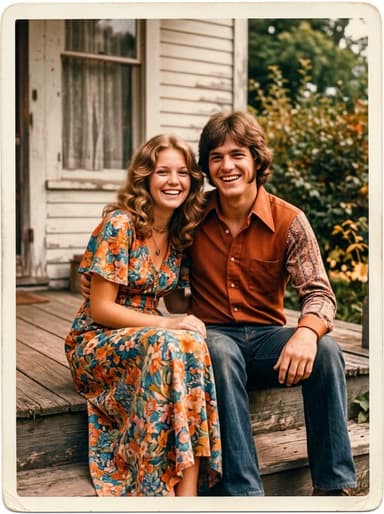 Animate old photos of loved ones: see them blink and smile again, gently5 min read
- How to restore old photos with AI: bring back the faces in the family album5 min read
 Día de los Muertos photo tribute: restored and moving photos for your ofrenda4 min read
- A photo gift for grandparents: their old photos, restored and brought to life4 min read
- How to colorize black-and-white photos with AI so they look real4 min read
Ready to make yours?
Add one photo and get the look from this guide.